Shopify Variant Image Management: How to Add, Delete, & Hide Your Images
Have difficulties managing multiple variant images on Shopify? Don't worry; this article provides you with a step-by-step guide on how to do it.




Published June 23, 2024.

Running a Shopify store means you know how important it is to have enough high-quality product images that showcase your merchandise in the best possible light. And if you're offering products with multiple variations (such as different colors or sizes), you'll need variant images to give your customers the full scope.
However, your product variant images need to be properly managed if you're hoping to enhance the customer experience in your store. While Shopify does optimize your images, knowing how to add, delete, or hide your Shopify variant images yourself can help you create a seamless shopping experience for your customers, increasing the likelihood of them making the purchase and boosting your bottom line.
1. How to Add Variant Images in Shopify
Having multiple variant images allows you to showcase different angles or features of your product variants. You can easily add multiple images to variants in Shopify by following these steps:
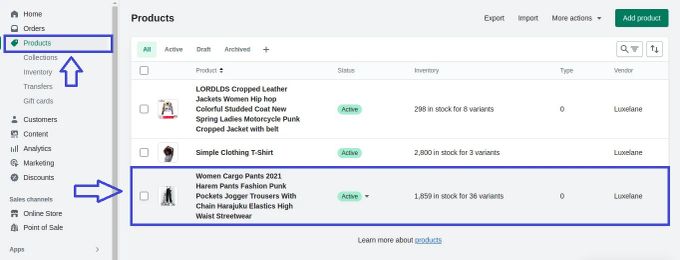
- Log in to your Shopify account and navigate to the Products section.
- Click on the product you want to add variant images to.
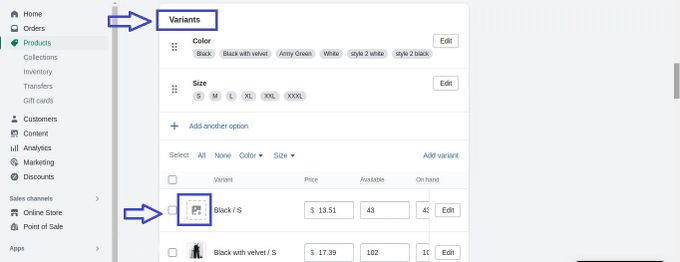
- Scroll down to the Variants section and click on the image icon next to the relevant variant.
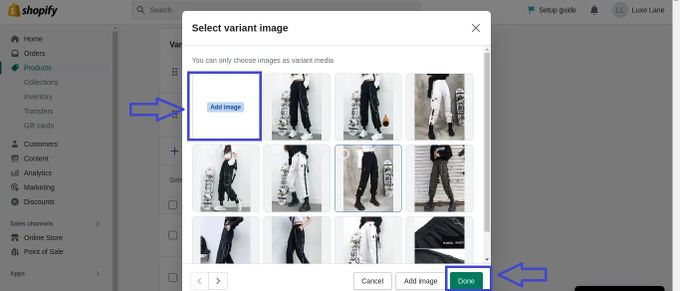
- From the pop-up menu, select the Add image button and upload your images. Note that you can only upload certain file types and image sizes.
- Select the image that corresponds to the variant and click Done.
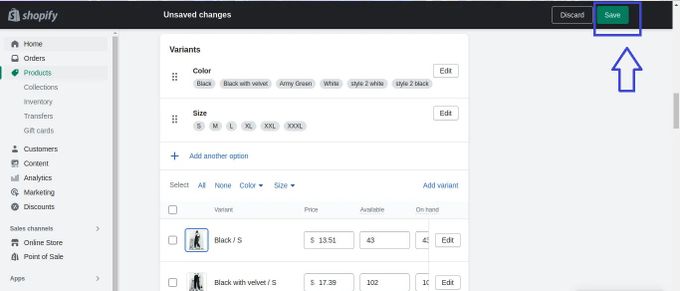
- Click Save to confirm your changes and finish adding your variant images.
Changing Your Variant Images
When you have multiple variants for a single product, it’s essential to change the image based on the variant selected by the customer. This feature enhances the user experience, allowing customers to see exactly what they are purchasing.
To change the image based on the variant in Shopify, follow these steps:
- Log in to your Shopify account and navigate to the product page where the variant image is located.
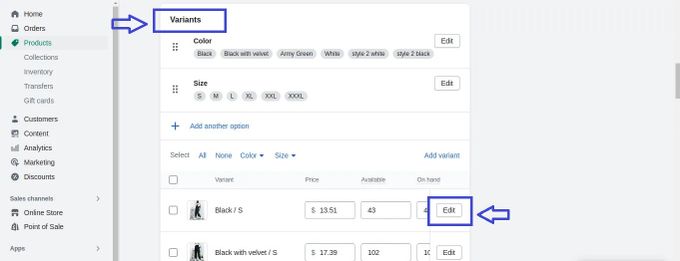
- Scroll down to the Variants section and find the variant with the image you want to change. Click on the Edit button next to it.
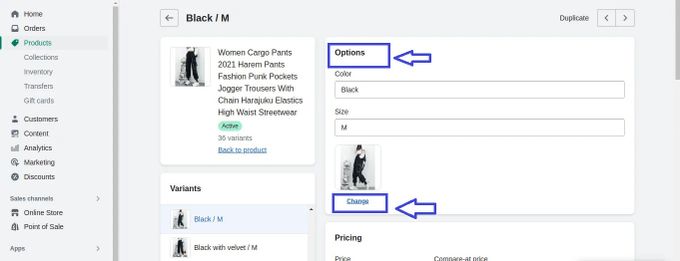
- In the Options section of the editing screen, click on the Change button below the image.
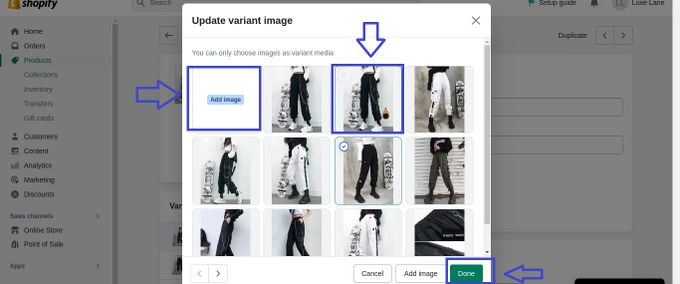
- Click on Add image to upload a new image or select one from the preloaded options to replace the existing variant image.
- Once you've picked your preferred new image, click Done to confirm your selection.
- When you're done making changes, click Save to update the product variant with the new image.
2. How to Delete Variant Images in Shopify
Sometimes, you may need to delete variant images in your Shopify store, especially if they're outdated or the product variant is sold out. Here are the steps for removing variant images to keep your product information fresh:
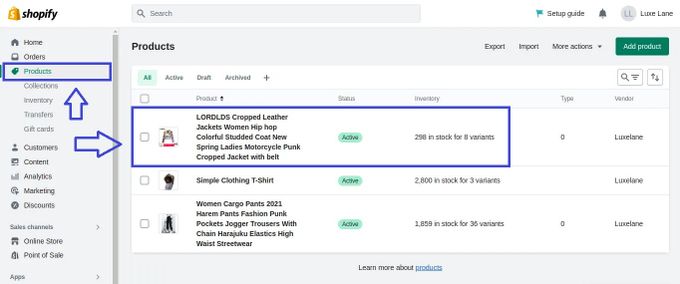
- Go to your Shopify admin dashboard and navigate to the Products section.
- Click on the product that you want to edit.
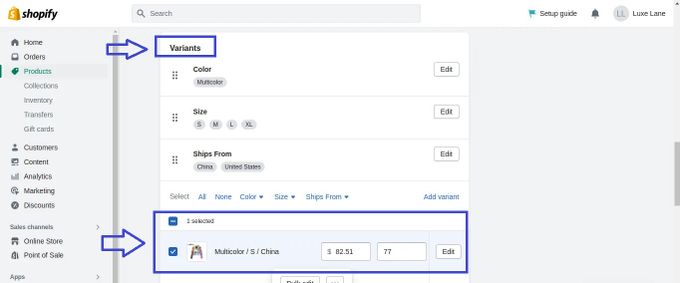
- Scroll down to the Variants section and select the variant you want to remove the image from.
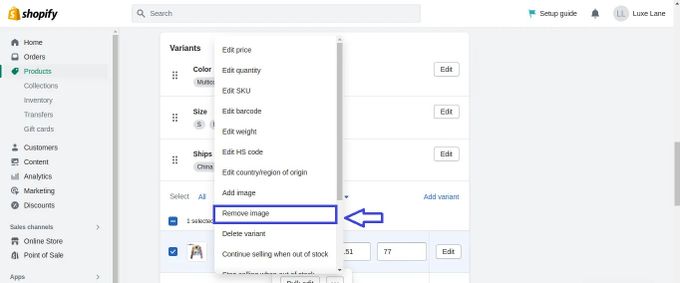
- Click on the ellipsis (three dots) next to the Bulk edit button on the pop-up menu.
- Select Remove image from the drop-down menu.
- Click Save to confirm the changes.
3. How to Hide Variant Images in Shopify
Instead of permanently deleting your variant images, there may be cases when you just want to stop displaying them for a while, like when a particular product variant is currently out of stock. This can also make your product page less cluttered and help customers focus on the specific variant they are interested in.
That's when hiding variant images in Shopify can come in handy, and this is how to do it:
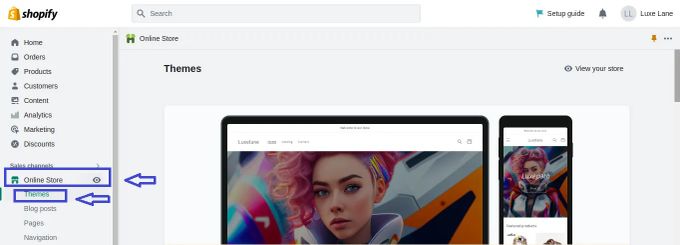
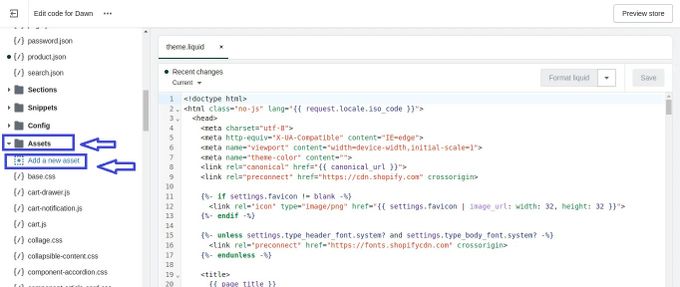
- From your Shopify admin panel, click on Online Store and then Themes.
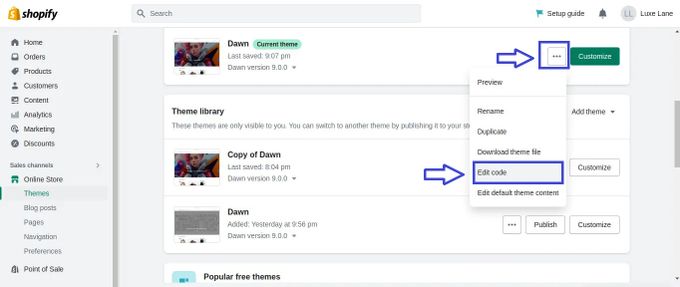
- Scroll down and click on the ellipsis (three dots) next to the Customize button for your current theme.
- From the drop-down menu, select Edit code.
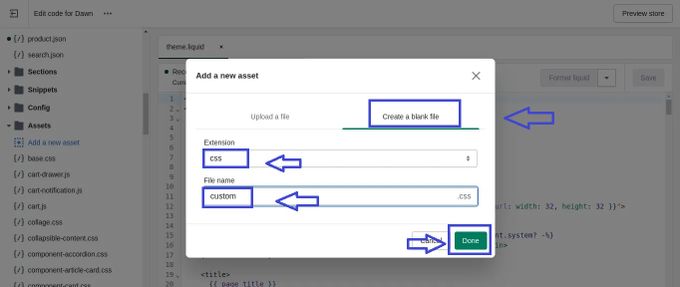
- In the left sidebar, click on Assets and then Add a new asset.
- In the Create a blank file section, name the new asset file "custom" and add a "css" extension (e.g., custom.css), then click Done.
-
Open the "custom.css" file and add this code:
.product-single__media-item[data-variant-id="VARIANT_ID"] { display: none; } - Replace VARIANT_ID with the ID of the variant you want to hide the image for. You can find the variant ID by checking the URL—the ID is the number at the end of it.
- Save the changes to the "custom.css" file.
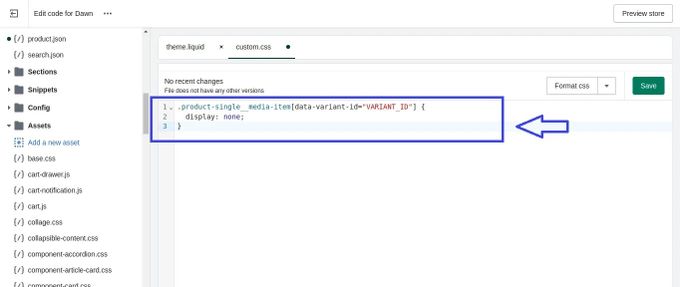
Using this code, you'll be able to hide the variant image while keeping the variant itself available on the product page.
» Want to hide the whole product variant instead? Follow these steps
Troubleshooting Shopify Variant Image Not Changing
If your variant image is not changing when a different variant is selected, there are a few potential reasons to consider:
- The variant doesn’t have an image associated with it
- There’s an issue with your theme’s code
- There’s a delay in Shopify’s system
If you've already checked for the first two issues and the problem still persists, it may be worth reaching out to Shopify's support team for further assistance.
Please note: It’s important to have different images for variants to accurately represent each variant’s unique features. Troubleshooting variant image issues is important to maintain your store's integrity, ensure customer satisfaction, and support your business's success.
» Still on image optimization: Make all your product images the same size on Shopify
Optimize Your Variant Images
While properly managing your variant images is vital for your store's success, this alone is often not enough—you also need to make sure they're well optimized. By optimizing your images, you can improve page load times and enhance the overall customer experience in your store.
- Remove background, resize, and center variant images with ease.
- Choose between JPG and PNG formats and set your preferred quality.
- Automatically generate ALT text for variant images.
With a solution like the All-In-One Image Master app by Egnition, you can quickly optimize multiple variant images at once to save time and effort. The app's helpful features let you easily compress and resize images, add watermarks, and even convert file formats to ensure your variant images are optimized for the web. Plus, its user-friendly interface makes it easy to navigate even if you're not a tech wizard.
» Learn everything there is to know about this app in the following All-In-One Image Master review
Manage Your Shopify Variant Images Like a Pro
Including Shopify variant images is incredibly important for enhancing customer satisfaction and helping your products appeal to a wider audience to promote Shopify store growth. However, you need to properly manage your Shopify variant images relying on the steps above to reap their full benefits.
What's more, you should dedicate special attention to optimizing your variant images for the best results, which is where an app like All-In-One Image Master comes in handy. By combining optimization with careful variant image management, you can quickly and easily realize the full potential of having variant images in your store.